

Instructor Registration
The instructor registration system lets visitors and existing users apply to become instructors directly from your site’s front end. You control whether applications are approved automatically or require your review.
Adding the Registration Form to a Page
Section titled “Adding the Registration Form to a Page”Place the instructor registration form on any page by adding the following shortcode to the page content:
[ld_instructor_registration]The form automatically adapts to show the right content based on who is viewing it:
| Visitor type | What they see |
|---|---|
| Not logged in, open registration | Full registration form |
| Not logged in, registration closed | Access denied message |
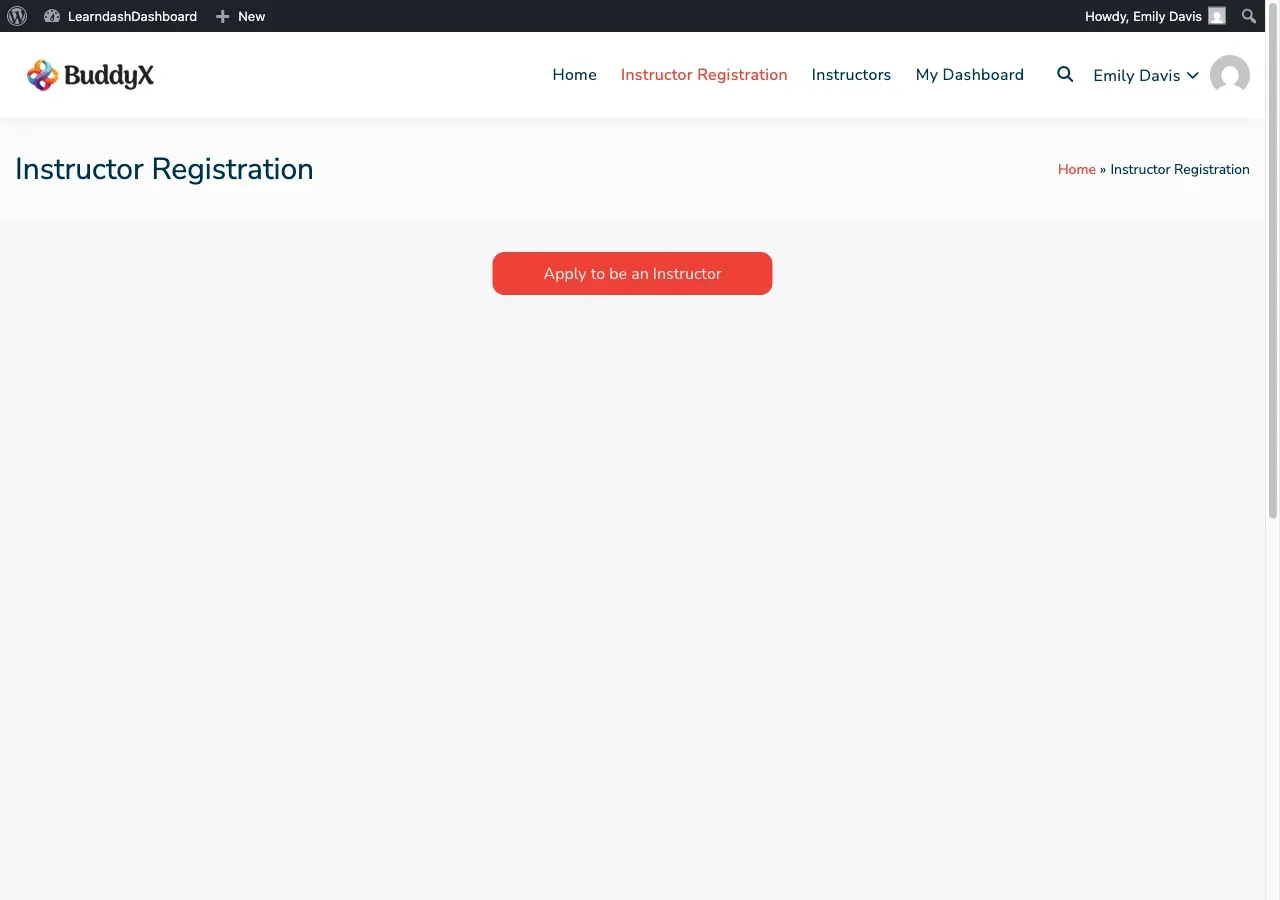
| Logged in, not yet an instructor | “Apply to be an Instructor” button |
| Logged in, application pending | A notice showing their pending status |
| Logged in, already approved | A notice showing their approved status |
| Administrator | A notice that admins already have full access |
Note: The registration form only appears to non-logged-in visitors when Anyone can register is enabled in WordPress Admin > Settings > General.
How New Users Apply
Section titled “How New Users Apply”When a visitor submits the registration form, they fill in:
- First Name and Last Name
- Username
- Email address
- Password and password confirmation
After submitting, their account is created, they are automatically logged in, and you receive an email notification.
How Existing Users Apply
Section titled “How Existing Users Apply”A logged-in user who is not yet an instructor sees an Apply to be an Instructor button. Clicking it submits their application and sends you an email notification.
Require Approval or Auto-Approve
Section titled “Require Approval or Auto-Approve”Go to WordPress Admin > LearnDash Dashboard > Settings > General Settings > Instructor Role Status:
- Unchecked (default): Applicants immediately become instructors with no further action from you
- Checked: Applicants receive a pending status and wait for your approval before gaining instructor access
Approving a Pending Instructor
Section titled “Approving a Pending Instructor”When approval is required:
- Go to WordPress Admin > LearnDash Dashboard > Settings > Instructor Settings
- Filter the instructor table by Pending to find applicants awaiting review
- Open the user’s account in the WordPress user editor
- Change their role from pending to Instructor