

Surveys
Bundle multiple polls into comprehensive surveys. Collect detailed feedback from your community with multi-question forms, access controls, and response tracking.
What Are Surveys?
Section titled “What Are Surveys?”Surveys combine multiple polls into a single questionnaire. Instead of posting individual polls, you create one survey with multiple questions:
- Each question is a separate poll
- Questions appear one at a time
- Progress is tracked automatically
- Responses are stored together
- Statistics show completion rates
This creates structured data collection — surveys guide respondents through a complete questionnaire with start-to-finish tracking.
For Site Owners
Section titled “For Site Owners”Creating Surveys
Section titled “Creating Surveys”Navigate to WP Admin → Surveys → Add New
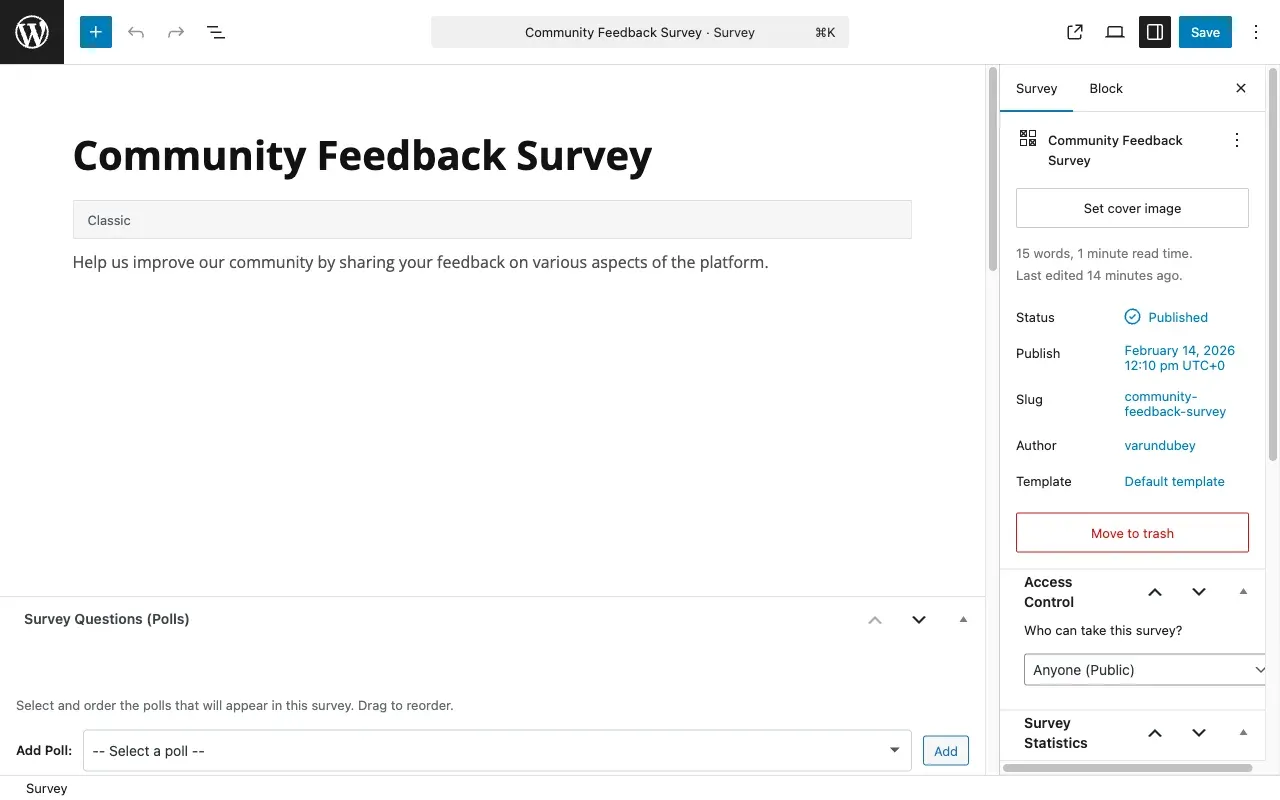
Survey Basics
Section titled “Survey Basics”Survey Title
Section titled “Survey Title”The main heading displayed when members start your survey. Make it clear and descriptive.
Survey Description
Section titled “Survey Description”Explain the purpose and what respondents can expect. This appears on the survey start screen.
Adding Questions
Section titled “Adding Questions”Question List
Section titled “Question List”Your survey questions appear in the Questions section. Each question is a poll you’ve already created.
To add questions:
- Click Add Question
- Select a poll from the dropdown
- Questions appear in the order you add them
- Drag to reorder questions
- Click X to remove a question
Requirements:
- Polls must be published before adding to surveys
- Each poll appears as one question
- Minimum 1 question required
- No maximum limit
Survey Settings
Section titled “Survey Settings”Access Control
Section titled “Access Control”Access Level Control who can take your survey.
| Option | Who Can Access |
|---|---|
| Public | Anyone, including logged-out visitors |
| Authenticated | Only logged-in members |
| Specific Roles | Selected WordPress roles only |
| Password Protected | Anyone with the password |
Role Selection: When “Specific Roles” is selected, choose which WordPress roles can access the survey (Subscriber, Contributor, Editor, etc.).
Password: When “Password Protected” is selected, set a password. Respondents must enter this before starting.
Email Collection
Section titled “Email Collection”Require Email When enabled:
- Survey asks for email before starting
- Email is stored with response
- Used for notifications and follow-up
Lead Gate Show email collection on:
- Start: Before first question
- End: After completing all questions
Response Settings
Section titled “Response Settings”Allow Resubmit
Section titled “Allow Resubmit”Let respondents take the survey multiple times. When disabled, users can only submit once (tracked by email or user ID).
Show Results
Section titled “Show Results”Display survey results after completion:
- Immediately: Show results right after submission
- After Close Date: Show results only after survey closes
- Never: Never show results to respondents
Thank You Page
Section titled “Thank You Page”Thank You Message
Section titled “Thank You Message”Custom message displayed after survey completion. Use this to:
- Thank respondents
- Explain next steps
- Share what happens with their data
Character Limit: 500 characters
Redirect URL
Section titled “Redirect URL”Optionally redirect to another page after completion. Enter full URL:
- External site:
https://example.com/thank-you - WordPress page:
https://yoursite.com/next-steps
Note: If both message and redirect are set, redirect takes priority.
Notifications
Section titled “Notifications”Notify Admin
Section titled “Notify Admin”Send email to site administrator when someone completes the survey.
Admin Email Recipients: Enter comma-separated email addresses:
admin@site.com, manager@site.comEmail includes:
- Respondent name/email
- Completion timestamp
- Link to view responses
Notify Respondent
Section titled “Notify Respondent”Send confirmation email to the person who completed the survey.
Email includes:
- Survey title
- Completion confirmation
- Thank you message
- Results link (if enabled)
Privacy & GDPR
Section titled “Privacy & GDPR”GDPR Consent Text
Section titled “GDPR Consent Text”Add custom privacy notice displayed before survey starts. Use for:
- Data collection disclosure
- Privacy policy links
- Consent requirements
Example:
By completing this survey, you consent to our collectionand use of your responses as described in our[Privacy Policy](https://yoursite.com/privacy).Requirement: If GDPR text is added, respondents must check consent box before starting.
Survey States
Section titled “Survey States”Surveys have three states:
| State | What It Means |
|---|---|
| Draft | Not visible to members, still being edited |
| Published | Live and accepting responses |
| Closed | No longer accepting responses, may show results |
To change state:
- Draft → Published: Click “Publish” button
- Published → Closed: Set closing date or manually close
- Closed → Published: Remove closing date
Survey Statistics
Section titled “Survey Statistics”View survey performance in the admin list:
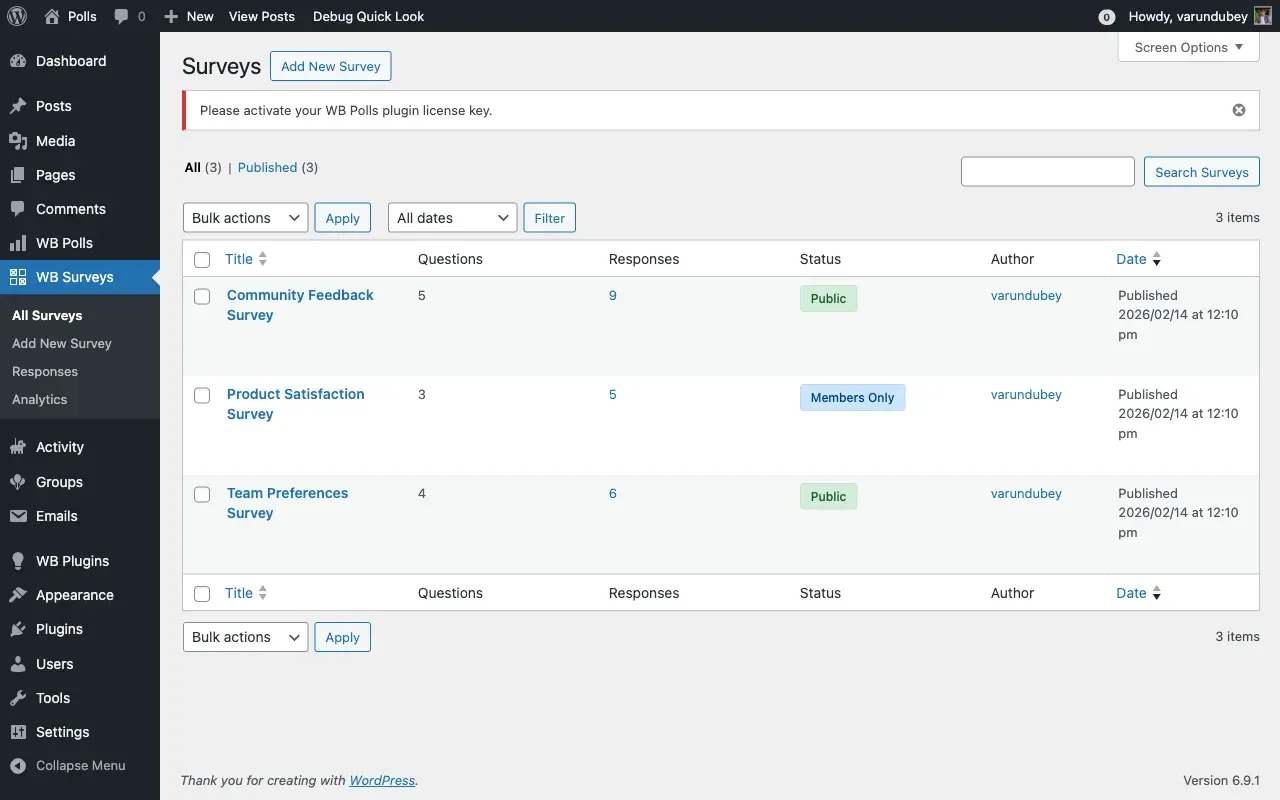
Tracked Metrics
Section titled “Tracked Metrics”| Metric | Description |
|---|---|
| Views | How many times the survey start page was viewed |
| Starts | How many people began the survey |
| Completes | How many people finished all questions |
| Completion Rate | (Completes / Starts) × 100% |
Example:
- 100 views
- 75 starts (75% started after viewing)
- 60 completes (80% completion rate)
Viewing Responses
Section titled “Viewing Responses”Navigate to Surveys → Responses to see all survey submissions.
Response Data Includes:
- Respondent name/email
- Start timestamp
- Complete timestamp
- Time taken
- Individual answers
- User agent/IP (if enabled)
Export Options:
- CSV download
- Filtered by date range
- Filtered by survey
- Individual or bulk export
For Members
Section titled “For Members”Taking a Survey
Section titled “Taking a Survey”Step 1: Start the Survey
Section titled “Step 1: Start the Survey”When you visit a survey, you see the start screen:
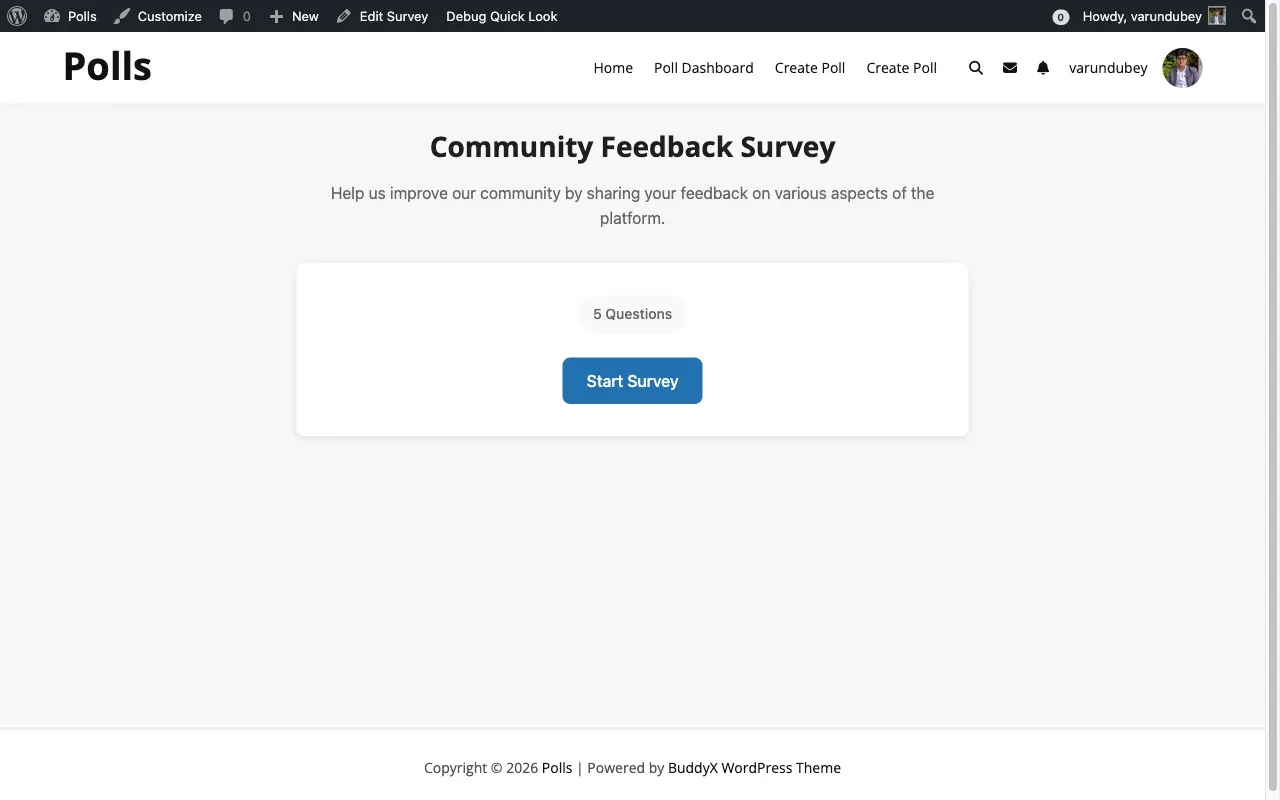
What You’ll See:
- Survey title and description
- Number of questions
- Estimated time (if provided)
- GDPR consent checkbox (if required)
- Email input (if required at start)
- Start button
Before Starting:
- Read the description
- Check GDPR consent box (if shown)
- Enter email (if required)
- Click Start Survey
Step 2: Answer Questions
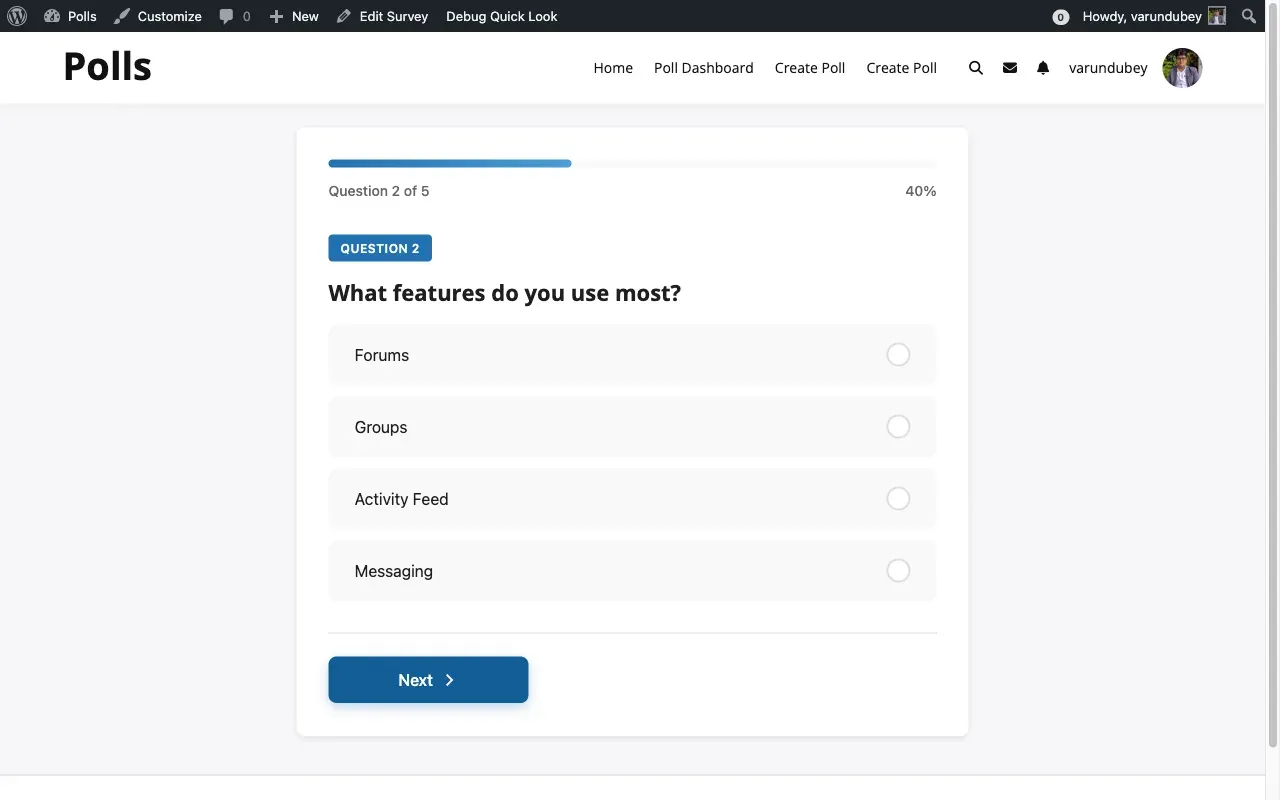
Section titled “Step 2: Answer Questions”Questions appear one at a time:
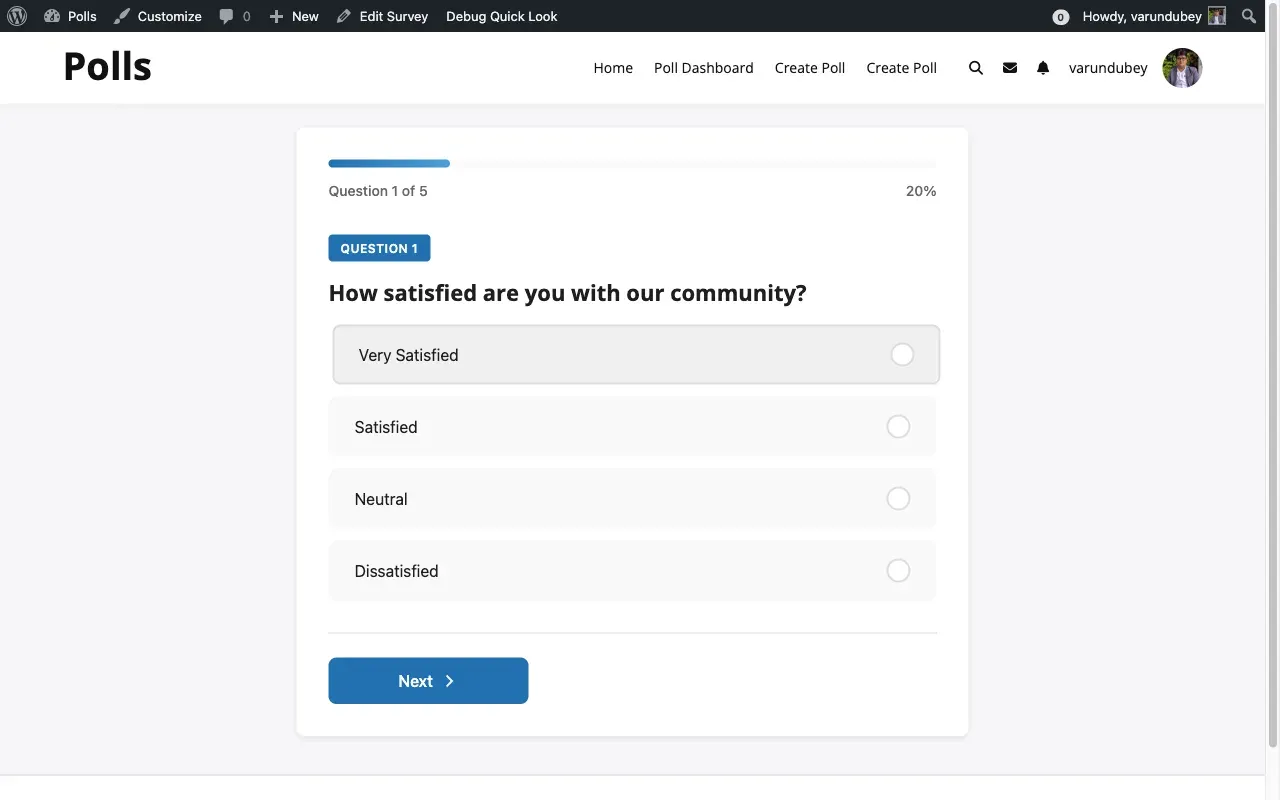
Question Display:
- Current question number (e.g., “Question 2 of 5”)
- Progress bar showing completion
- Poll question and options
- Previous/Next navigation
- Exit survey link
Answering Questions:
- Read the question
- Select your answer(s)
- Single-select: One option
- Multi-select: Multiple options allowed
- Click Next to continue
Navigation:
- Previous: Go back to review/change answers
- Next: Move to next question
- Save & Exit: Save progress and finish later (if enabled)
Step 3: Complete the Survey
Section titled “Step 3: Complete the Survey”After the last question:
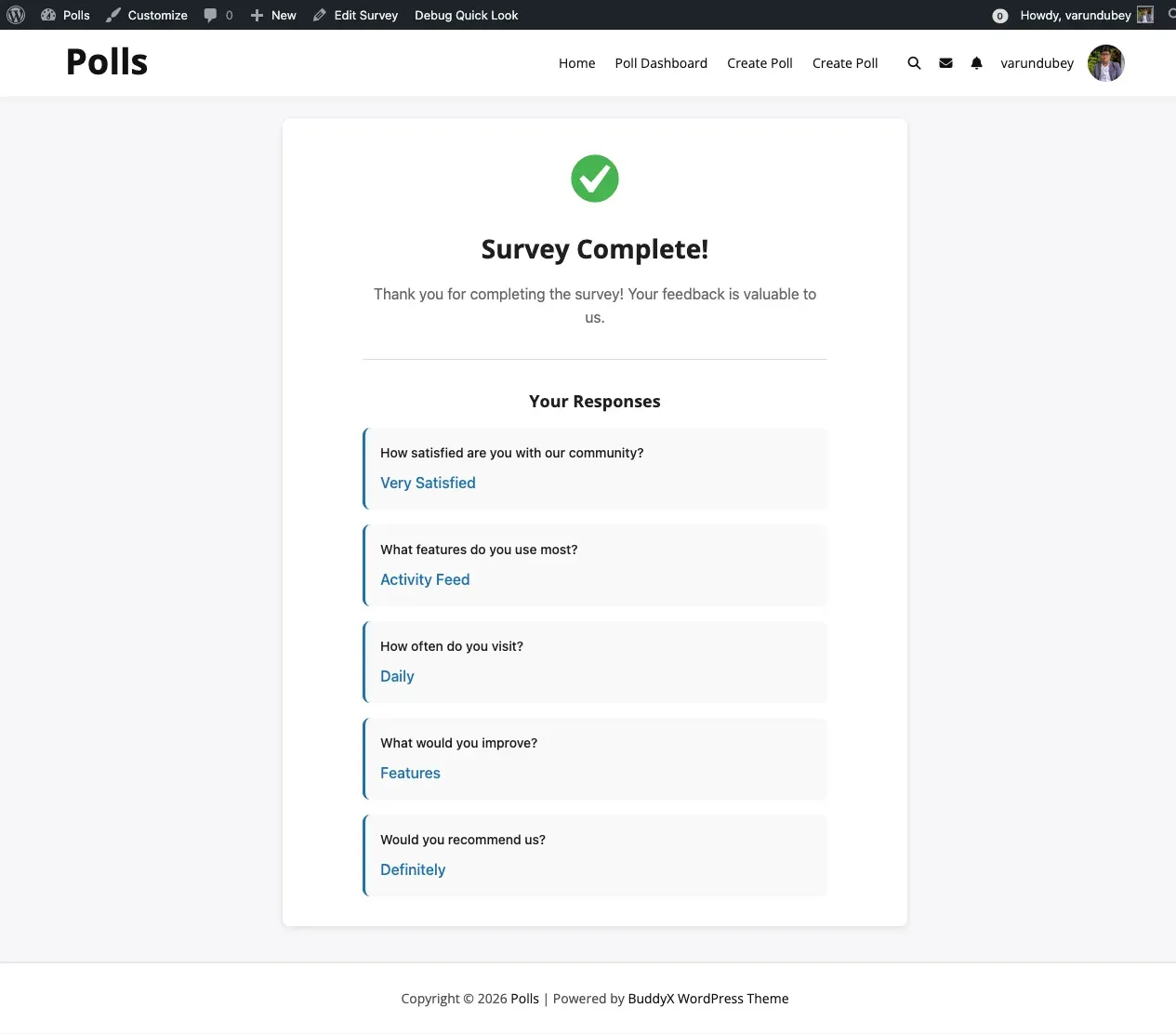
What Happens:
- You see the final question
- Click Submit instead of Next
- Your response is saved
- You see the thank you message (or redirect)
- Results appear (if enabled)
Email Collection (if at end):
- Enter email before submission
- Used for confirmation email
- Required field
Survey Progress
Section titled “Survey Progress”Progress Tracking:
- Progress bar shows percentage complete
- “Question X of Y” counter
- Can navigate back to previous questions
- Answers are saved as you go
Resuming Later (if enabled):
- Click Save & Exit on any question
- Your progress is saved
- Return to survey URL later
- Click Resume to continue where you left off
Survey Validation
Section titled “Survey Validation”Common Validation Messages:
| Message | Meaning |
|---|---|
| “Please select an answer” | No option selected on current question |
| “Email is required” | Must provide email to continue |
| “Please accept privacy terms” | Must check GDPR consent |
| “This survey is closed” | Survey no longer accepting responses |
| “You’ve already completed this survey” | Resubmission not allowed |
Embedding Surveys
Section titled “Embedding Surveys”Using Shortcode
Section titled “Using Shortcode”Add surveys to any page or post:
[wbsurvey id="123"]Parameters:
| Parameter | Options | Default |
|---|---|---|
id |
Survey ID (required) | - |
show_title |
yes/no | yes |
show_description |
yes/no | yes |
Example:
[wbsurvey id="123" show_title="yes" show_description="yes"]Finding Survey ID:
- Go to Surveys → All Surveys
- Hover over survey title
- Look at URL:
post=123— ID is 123
Direct URL Access
Section titled “Direct URL Access”Each survey has a permalink:
https://yoursite.com/survey/survey-title/Sharing Options:
- Email the URL to participants
- Post on social media
- Add to navigation menus
- Link from other content
URL Parameters:
| Parameter | Purpose | Example |
|---|---|---|
?preview=1 |
Preview as admin | .../?preview=1 |
?response=123 |
View specific response | .../?response=123 |
Survey Results
Section titled “Survey Results”For Administrators
Section titled “For Administrators”View comprehensive results in Surveys → View Results:
Overall Statistics:
- Total responses
- Average completion time
- Completion rate
- Response timeline chart
Question-by-Question:
- Vote distribution
- Most popular answers
- Skip rates
- Cross-tabulation (compare questions)
Individual Responses:
- See complete submissions
- Filter by date/respondent
- Export individual responses
- Delete responses
For Respondents
Section titled “For Respondents”After completing the survey (if “Show Results” is enabled):
What You See:
- Your own responses
- Aggregate results for each question
- How your answers compare to others
- Total response count
Results Format:
- Same as standalone poll results
- Progress bars showing percentages
- Vote counts
- Charts (if enabled)
Best Practices
Section titled “Best Practices”Designing Effective Surveys
Section titled “Designing Effective Surveys”Do:
- Start with easy questions to build momentum
- Group related questions together
- Keep surveys under 10 questions when possible
- Use progress indicators
- Test before publishing
- Provide clear thank you messages
Avoid:
- Too many required questions
- Confusing navigation
- Lengthy text-heavy questions
- Missing privacy disclosures
- Surveys longer than 15 minutes
Privacy Best Practices
Section titled “Privacy Best Practices”Transparency:
- Explain why you’re collecting data
- Link to privacy policy in GDPR text
- Specify data retention period
- Allow opt-out of emails
Data Collection:
- Only require email if necessary
- Use anonymous surveys when possible
- Secure sensitive data
- Provide deletion requests option
Increasing Response Rates
Section titled “Increasing Response Rates”Before Launch:
- Promote survey in advance
- Explain benefits of participation
- Set reasonable close dates
- Test on multiple devices
During Survey:
- Send reminder emails
- Share completion statistics
- Offer incentives (if appropriate)
- Keep survey open long enough
After Survey:
- Thank participants
- Share results (if promised)
- Act on feedback
- Close survey when done
Troubleshooting
Section titled “Troubleshooting”Can’t Start Survey
Section titled “Can’t Start Survey”Possible Causes:
- Survey is closed or in draft mode
- You don’t have required access level
- Wrong password entered
- Already completed (resubmit disabled)
Solution:
- Check survey status
- Verify your login/role
- Contact site administrator
Questions Won’t Load
Section titled “Questions Won’t Load”Possible Causes:
- JavaScript disabled
- Browser cache issue
- Network timeout
- Plugin conflict
Solution:
- Enable JavaScript
- Clear browser cache
- Try different browser
- Check browser console for errors
Progress Not Saving
Section titled “Progress Not Saving”Possible Causes:
- Cookies disabled
- Session expired
- Survey doesn’t allow resume
- Browser privacy mode
Solution:
- Enable cookies
- Complete survey in one session
- Use regular browsing mode
- Contact administrator about resume feature
Can’t See Results
Section titled “Can’t See Results”Possible Causes:
- Admin disabled result viewing
- Results only shown after close date
- Survey still in progress
- Not logged in (if required)
Solution:
- Check survey settings with administrator
- Wait for close date
- Complete all questions first
Data Storage
Section titled “Data Storage”Database Tables
Section titled “Database Tables”| Table | Purpose |
|---|---|
wp_posts |
Survey post data (post_type: wbsurvey) |
wp_postmeta |
Survey settings and question links |
wp_wbsurvey_responses |
Survey responses and timestamps |
Post Meta Keys
Section titled “Post Meta Keys”| Meta Key | Data |
|---|---|
_wbsurvey_poll_ids |
JSON array of poll IDs (questions) |
_wbsurvey_access_level |
public/authenticated/roles/password |
_wbsurvey_require_email |
yes/no |
_wbsurvey_allow_resubmit |
yes/no |
_wbsurvey_lead_gate |
start/end |
_wbsurvey_show_results |
immediately/after_close/never |
_wbsurvey_thankyou_message |
Custom message text |
_wbsurvey_thankyou_redirect |
Redirect URL |
_wbsurvey_notify_admin |
yes/no |
_wbsurvey_notify_respondent |
yes/no |
_wbsurvey_gdpr_text |
Privacy notice text |
_wbsurvey_view_count |
Total views |
_wbsurvey_start_count |
Total starts |
_wbsurvey_complete_count |
Total completions |
Documentation by Wbcom Designs — docs.wbcomdesigns.com