

Save to Collections (Pro Picker)
Requires MediaVerse Pro - This feature is available exclusively in the Pro version.
MediaVerse Pro gives members a dedicated Save control for adding a media item to any number of their named collections, separate from the favorite (heart) button. Favoriting stays a one-tap like; saving to a collection is a deliberate, multi-select action with its own picker.
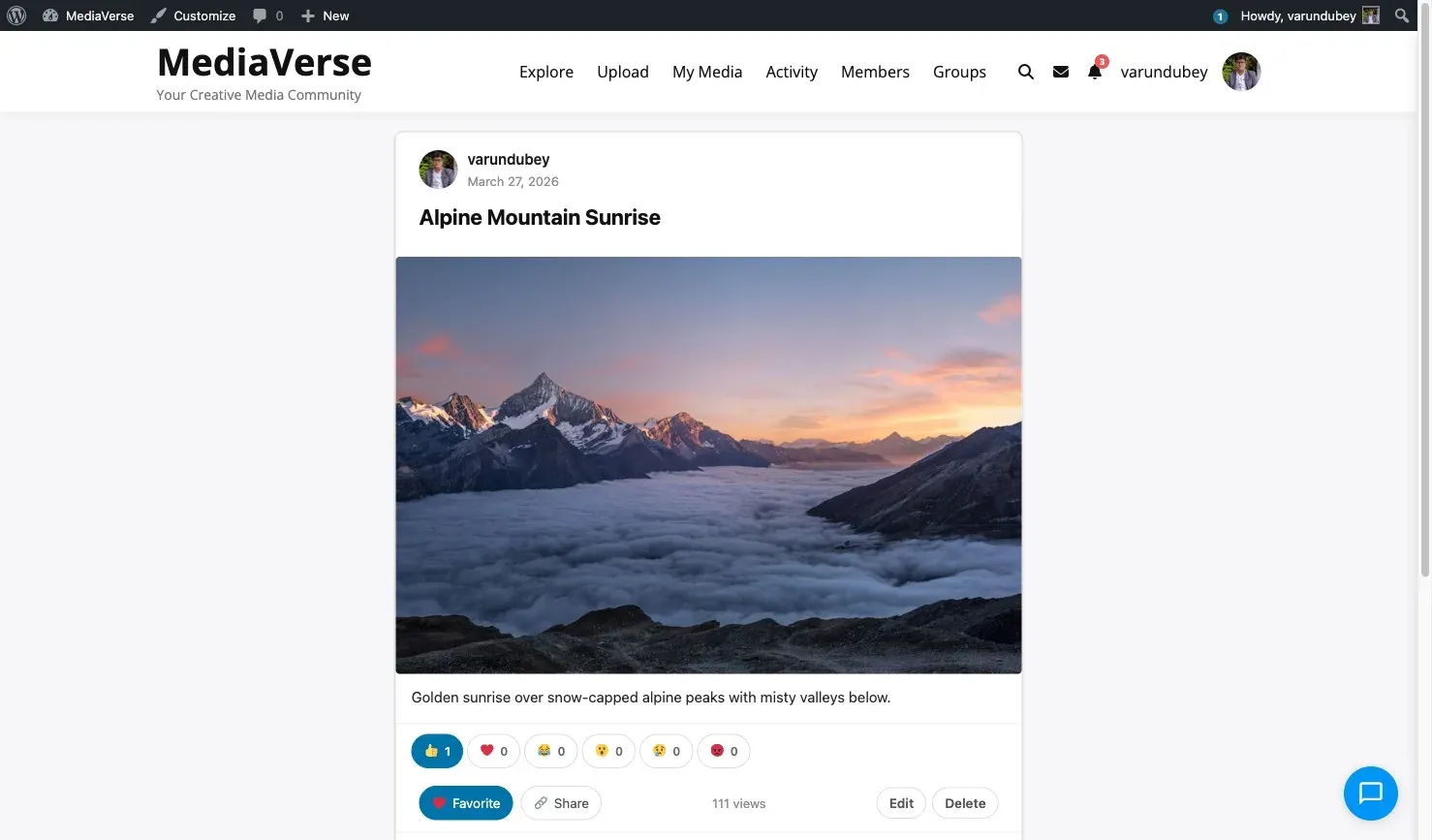
Save vs. Favorite
Section titled “Save vs. Favorite”- Favorite (heart) - a one-tap like. No picker, no confirmation, and it is not a collection membership.
- Save (bookmark) - opens the collection picker. It appears next to the heart wherever media actions render (single media page, lightbox, feed cards) once Pro is active, and only for logged-in users.
How It Works (for Users)
Section titled “How It Works (for Users)”- Click Save (bookmark icon) on a media item.
- The picker lists your named collections with a checkbox per row - check to add the item, uncheck to remove it.
- Each toggle saves automatically the moment you click it; there is no separate confirm button.
- Every row shows its own state inline: Saving…, then Saved or Removed. If a save fails, the row shows an inline error with a retry option.
- Don’t have the right collection yet? Type a name in + New collection and click Create - the name is validated (blank names are rejected).
- Click View your collections at the bottom of the picker to jump straight to the My Media dashboard Collections tab.
Named Collections Only
Section titled “Named Collections Only”The picker only lists your manual collections - the ones where you hand-pick items. Smart collections are rule-based and resolve their contents dynamically, so they are not toggle targets in the picker; they still work exactly as documented in the free Collections page.
Accessibility
Section titled “Accessibility”The picker is fully keyboard and screen-reader accessible:
- The popover carries
aria-labelledbypointing at its title. - Escape closes the picker and returns focus to the Save button that opened it - keyboard users are never stranded.
- Per-row status text (Saving/Saved/Removed) is announced via
aria-live="polite". - Loading, empty (“No collections yet, create one below”), and error states are all handled explicitly; errors carry
role="alert".
Where “View Your Collections” Goes
Section titled “Where “View Your Collections” Goes”By default, View your collections links to the My Media dashboard’s Collections tab. If your site’s dashboard lives at a different URL, filter mvs_pro_collections_manage_url - documented in the Free plugin’s Hooks & Filters reference - to point it wherever your site keeps that page.
REST API
Section titled “REST API”Base URL: /wp-json/mvs-pro/v1/
GET /media/{media_id}/collections
Section titled “GET /media/{media_id}/collections”Return the current user’s favorite flag plus their manual collections, each with a member boolean showing whether this media item is already in it.
Auth: User (logged in)
Response:
{ "favorites": true, "collections": [ { "id": 12, "title": "Travel Inspiration", "member": true }, { "id": 18, "title": "Black and White", "member": false } ]}POST /media/{media_id}/collections
Section titled “POST /media/{media_id}/collections”Add or remove the media item from one of the user’s own manual collections.
Auth: User (logged in; the collection must belong to the requesting user)
Body:
| Field | Type | Required | Default | Description |
|---|---|---|---|---|
collection_id |
int | Yes | - | The collection to toggle membership in |
member |
bool | No | true |
true to add the item, false to remove it |
Returns 404 (mvs_pro_invalid_collection) if the collection does not exist or is not owned by the requesting user.
Requirements
Section titled “Requirements”- MediaVerse Pro 1.8.0 or higher.