

Commerce Overview
Commerce Overview
Section titled “Commerce Overview”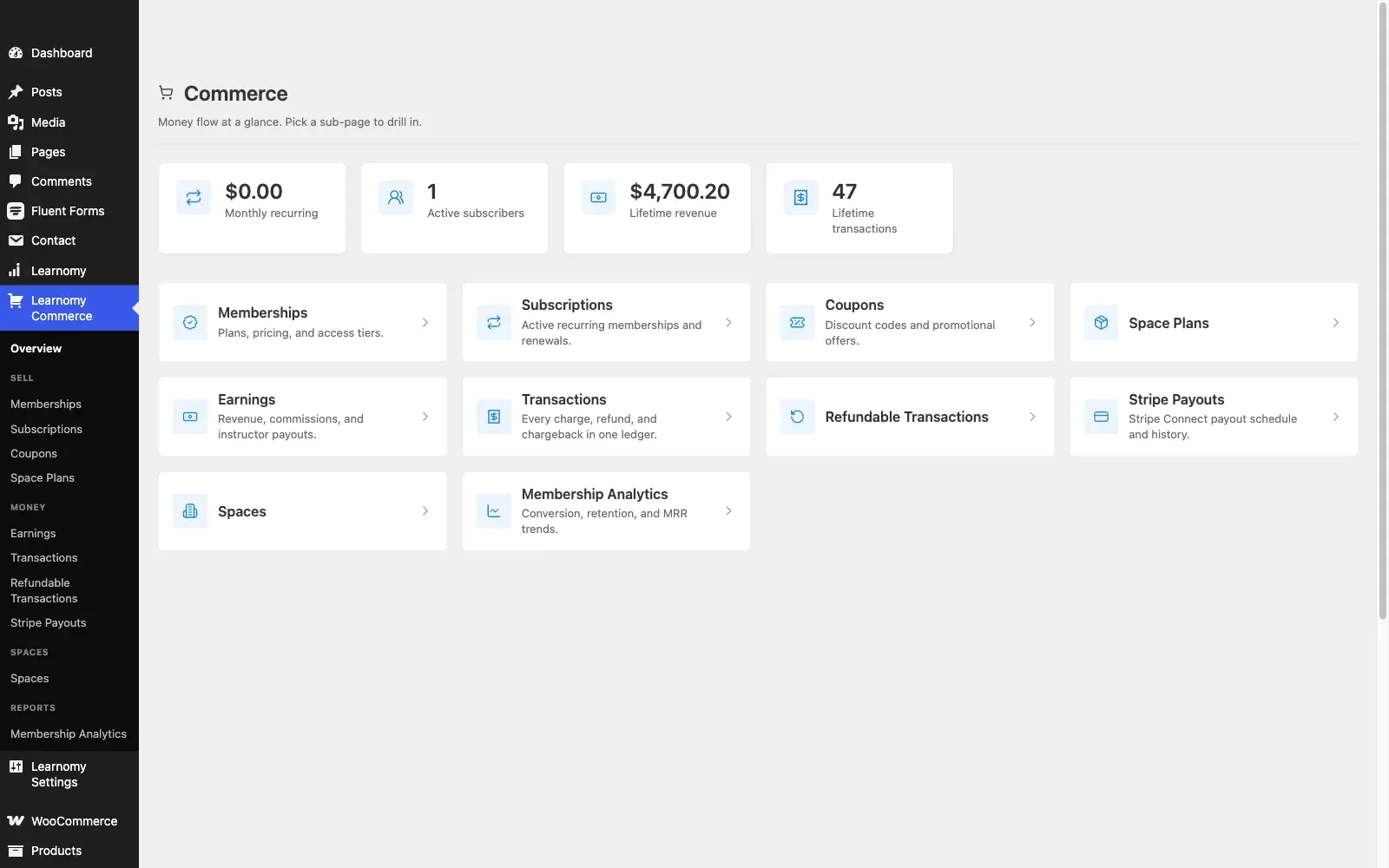
The LMS Commerce menu is where you manage every money-related part of your academy: membership plans, subscriber accounts, discount coupons, and the full transaction ledger. This page describes the Commerce home screen and what lives in each sub-page.
Overview
Section titled “Overview”Go to LMS Commerce in the WordPress admin sidebar. The menu only appears when at least one commerce module is enabled on LMS Settings > Modules (Memberships, Subscriptions, or Coupons). If no module is on, the screen shows an empty state with a direct link to the Modules page.
Sub-pages available under Commerce:
| Sub-page | What it does |
|---|---|
| Overview | This landing screen with revenue KPIs and navigation cards |
| Memberships | Create and manage membership plans |
| Subscriptions | View and manage member subscription accounts |
| Coupons | Create and manage discount codes |
| Earnings | Revenue, instructor commissions, and payout requests |
| Transactions | Complete ledger of every charge, refund, and renewal |
Pro feature. Membership Analytics and Stripe Payouts are available in Learnomy Pro.
The Commerce Overview screen
Section titled “The Commerce Overview screen”The overview screen gives you a quick read on money flow before drilling into a sub-page.
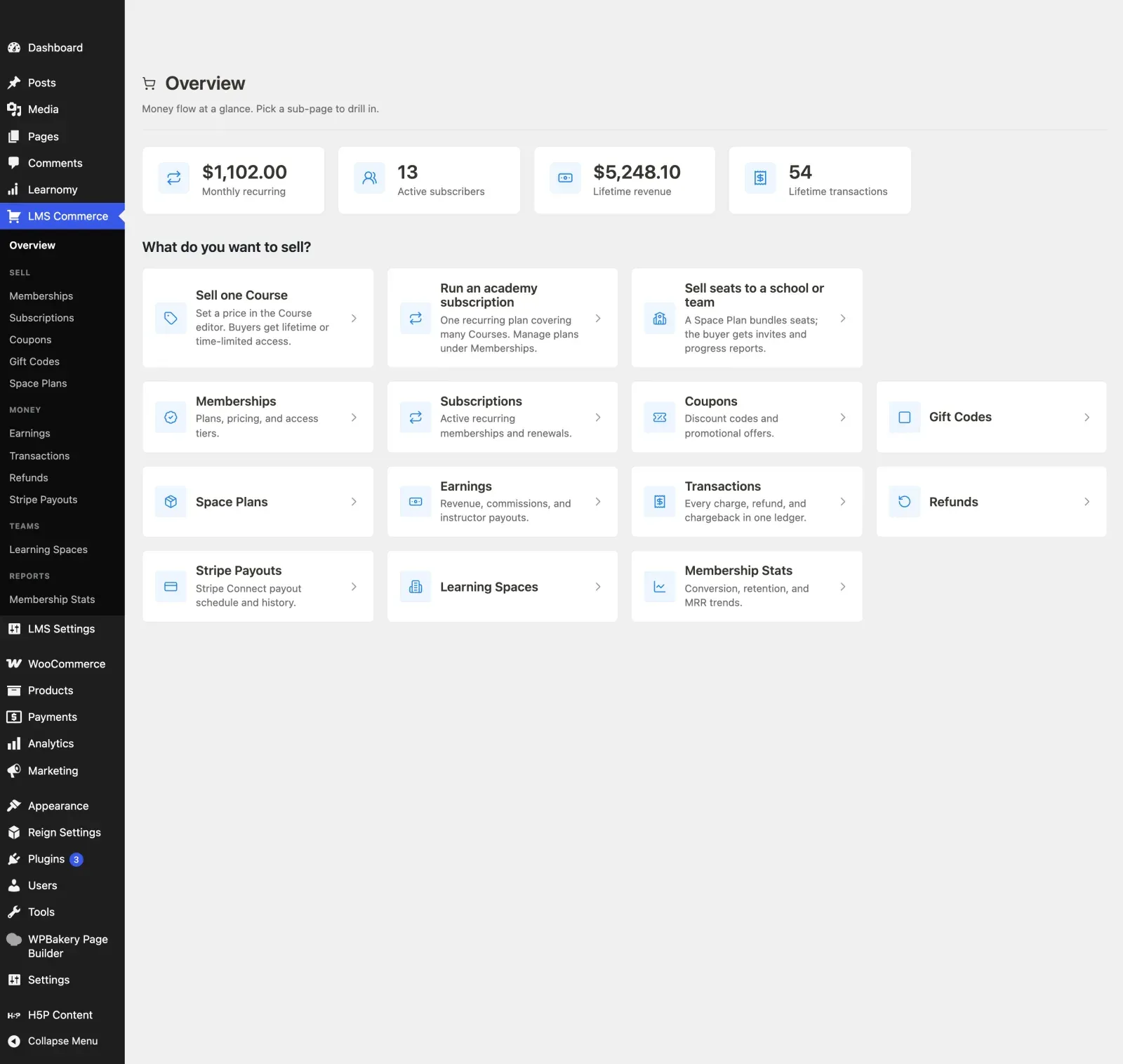
KPI summary cards
Section titled “KPI summary cards”Four stat cards sit at the top of the page.
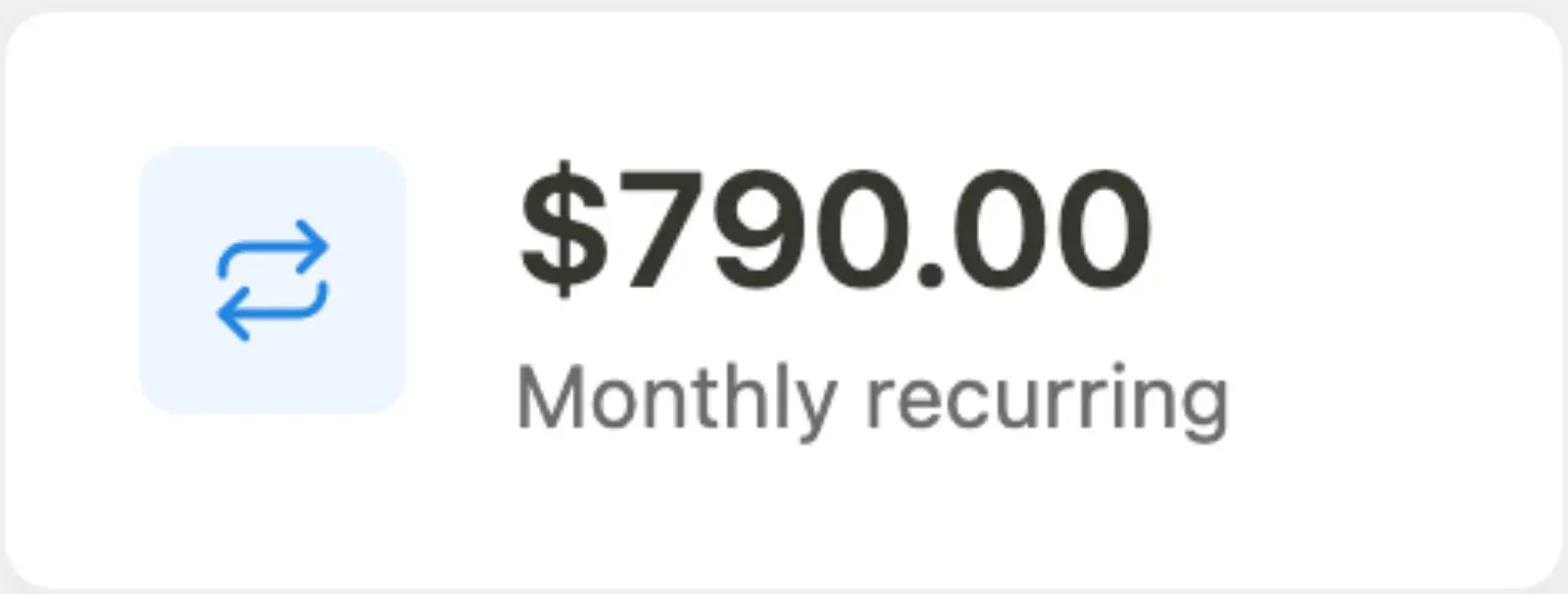
- Monthly Recurring Revenue (MRR) - the billed amount from all active subscriptions in the current month.
- Active subscribers - the count of subscriptions with status
activeortrialing. - Lifetime revenue - the total of all completed transactions since the site started.
- Total transactions - the count of all recorded transaction rows (purchases, renewals, and refunds).
Navigation cards
Section titled “Navigation cards”Below the KPIs, each enabled Commerce sub-page appears as a clickable card with a one-line description.
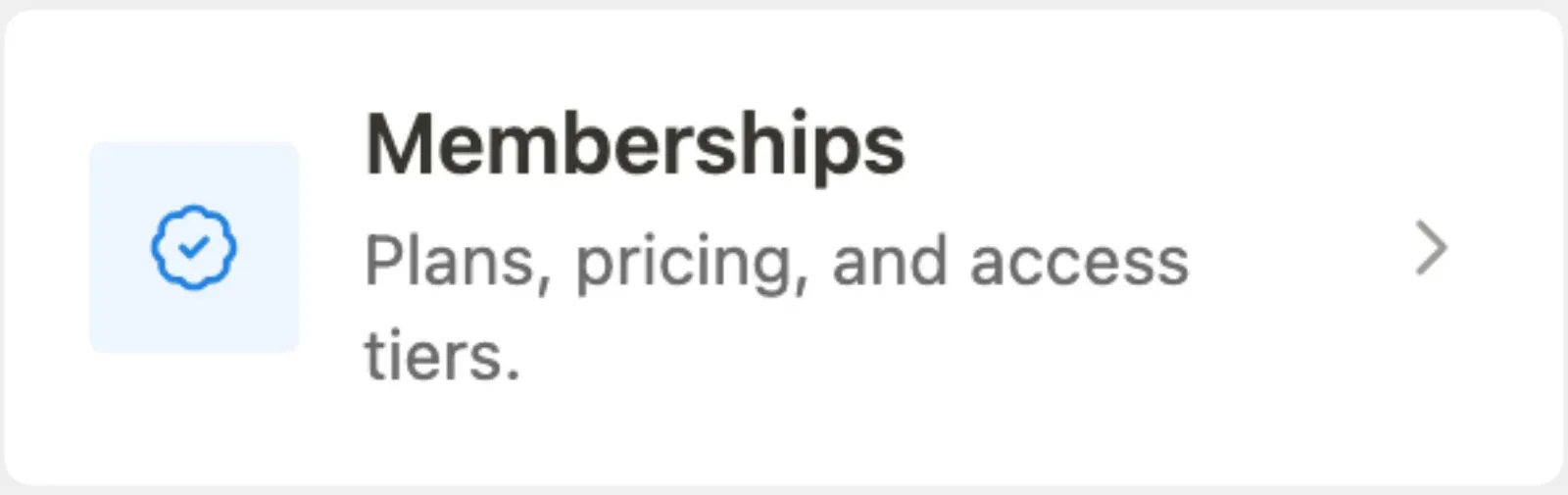
Click any card to go directly to that sub-page. The card for a sub-page only appears when the corresponding module is enabled.
No modules enabled
Section titled “No modules enabled”If you land on Commerce before enabling any module, the page shows an empty state with a button to open Modules.

Go to LMS Settings > Modules, toggle on Memberships or Coupons, and save. The Commerce menu and its cards will populate.
- The Commerce menu is conditional: it disappears entirely if all commerce modules are deactivated. Re-enabling any one module brings it back.
- Pro extensions (Membership Analytics, Stripe Payouts) add their own cards to the hub automatically.
- Third-party plugins can add cards and descriptions via the
learnomy_commerce_card_descriptionsfilter.